Continuing from the Previous Issue
After successfully running ltx2.3, let’s start by selecting the simplest mode: Text-to-Video.
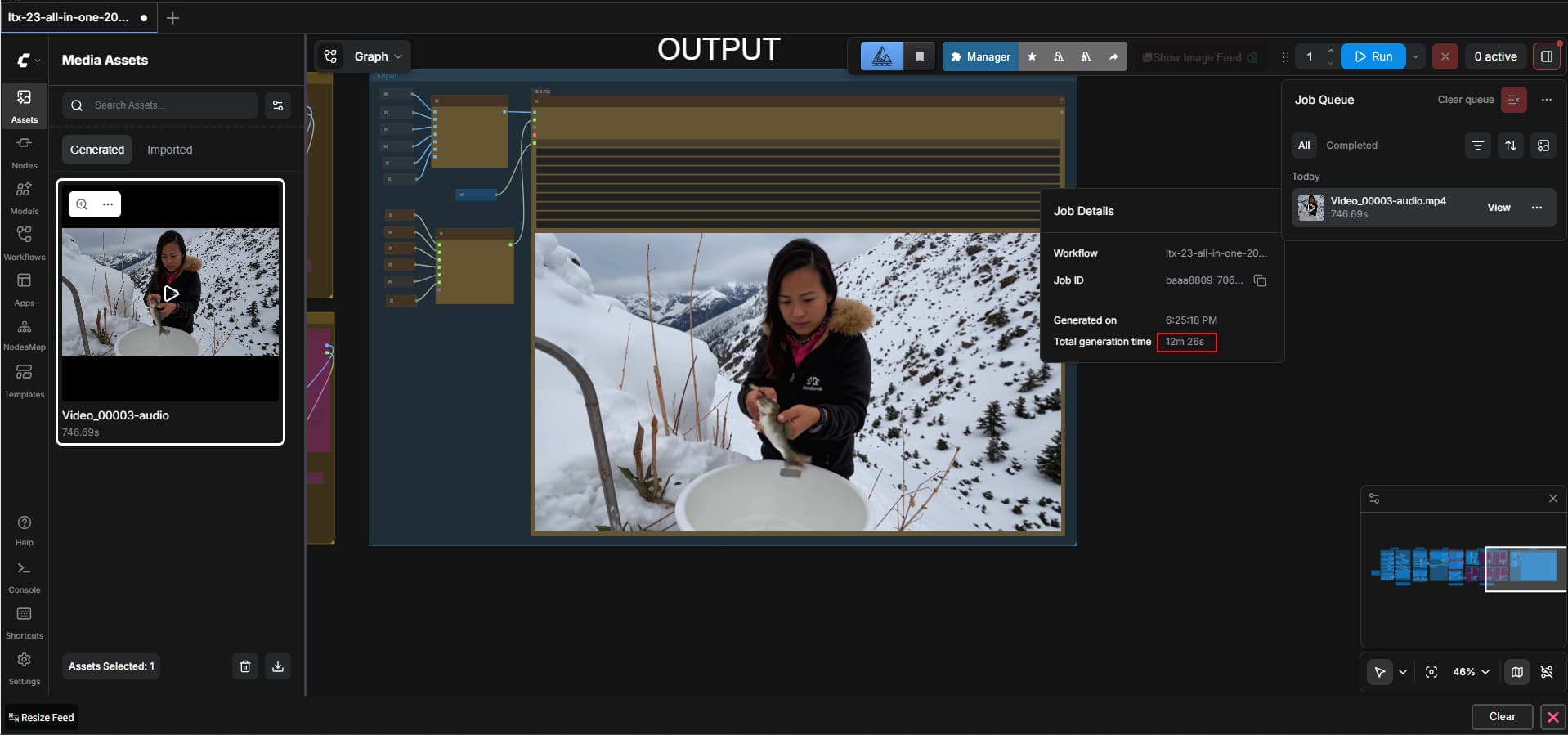
Locate the module shown in the image below, click within the area marked by the red box, and select “Text-to-Video.”
Tip:
Ltx2.3 offers a total of six modes, including Text-to-Video, Audio-to-Video, Image-to-Video, Video Style Transfer, Seamless Loop Video, and Lip-Sync Video.
This article will demonstrate the Text-to-Video feature; the others will be covered at a later time.
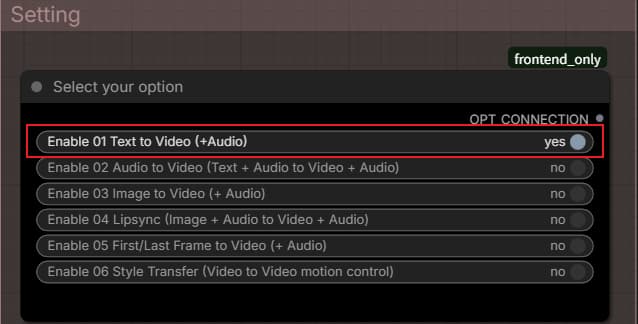
The module located directly below this one is used to configure the resolution, frame rate, and duration.
The default settings are 1920 x 1088 (1080p).
The default frame rate is 24 frames per second, and the default duration is 5 seconds.
You can adjust these settings to suit your specific requirements—for instance, changing the resolution to 720p, extending the duration to 10 seconds, or increasing the frame rate to 30 fps or 60 fps.
Initially, it is recommended to use the default parameters to generate a test video.
Tip:
The lower the resolution, the faster the generation process. For example, generating a 720p video takes at least half as much time as generating a 1080p video.
The same applies to duration and frame rate: processing time scales proportionally with these values.
When testing the effectiveness of your video prompts, it is advisable to select a lower resolution. Once you have refined your text prompts to consistently generate video scenes that match your vision, you can then switch to 1080p.
If 1080p still does not meet your needs, you might consider generating the video at 1080p first, and then using other AI software to upscale it—optimizing it to 4K resolution or 60 frames per second.
Enter Text Description
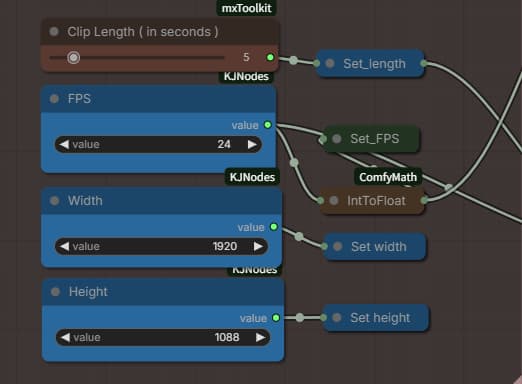
Locate the text input box.
For instance, I will enter the following text prompt:
A cute little kitten catches fish on a snowy mountain.
Then, click “Run” in the top-right corner to generate the video.
Tip:
Crafting text descriptions requires some knowledge of cinematic camera angles and shots. If you consistently fail to achieve your desired results, you can use an AI tool to optimize your prompts.
The AI will refine the prompt by describing the camera language more accurately and in greater detail.
Video Generation
My graphics card is an RTX 3060 with 12GB of VRAM.
It takes approximately 10 minutes to generate a 5-second video at 1080p resolution.
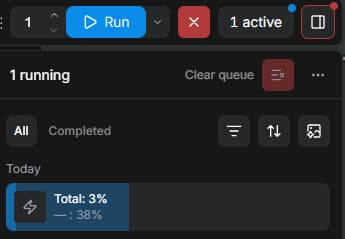
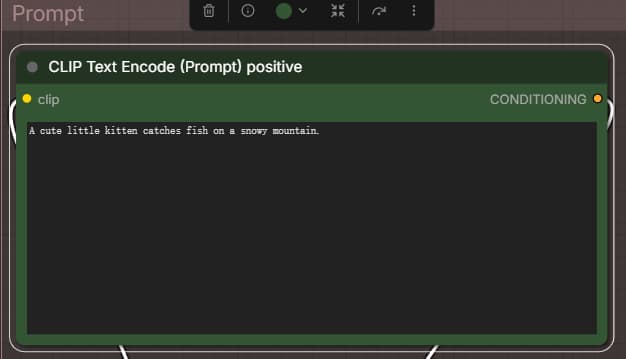
As you can see, my video took 12 minutes to generate.
However, the kitten I described did not appear; instead, the video only showed a woman cleaning fish. This clearly does not meet my requirements.
Therefore, I will subsequently need the AI to help me revise the text description to make it more easily understood by LTX 2.3.